How to set up your AIOZ Network node. A step by step guide for Windows
Download, install and set up an AIOZ node on Windows, then create a wallet. The guide also shows how to withdraw your AIOZ tokens, step by step.
This guide was published in March 2021 for the original AIOZ Node app. The current AIOZ DePIN apps are covered in the docs: DePIN GUI Desktop and DePIN CLI. If you prefer the command line, AIOZ DePIN CLI v1.2.5 is built for home labs, servers and headless machines.
The AIOZ Network is one of the first fully functional Blockchain-based Content Delivery Network (CDN) in the world. While it may seem complex at first glance, AIOZ can be leveraged to deliver content to your house in the most efficient way possible. AIOZ uses nodes that can be run by ordinary people in order to complement the network and earn rewards while doing so.
So, how can you become part of the AIOZ network? Easy, follow the steps below and join a brighter and less pixelated future for content delivery everywhere.
Download
The first thing you need to do is download the AIOZ Node setup file. To do so, go to https://aioz.network/ and click “Download Node” in the upper right corner.
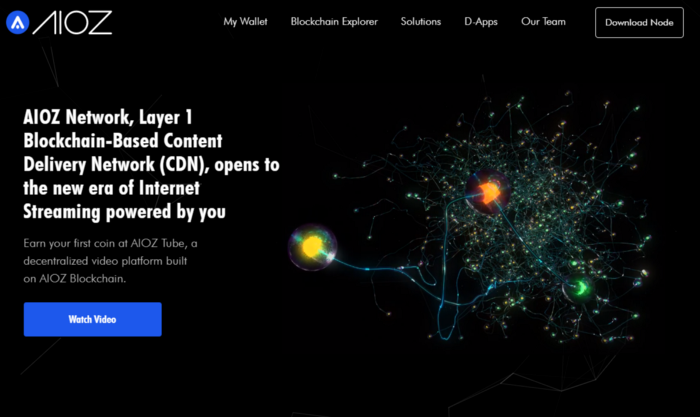
Once the file is downloaded, you’ll need to install the AIOZ Node Setup which is a simple process as well.
Install
Once you open up the setup file, you’ll be prompted to create a password. This stage is completely up to you, but please use a strong password with special characters to make sure your security is not compromised.
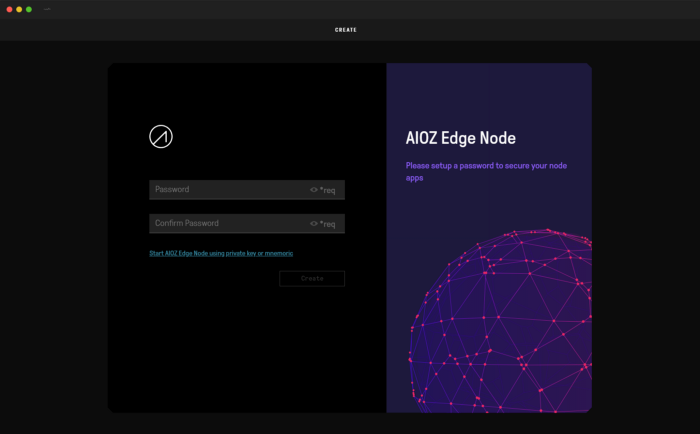
Once you’ve set your password up, you’ll be given your private key and mnemonic Recovery Phrase.
You can either download or copy your private key which grants access to your account in case your password is lost. This is a very important stage that should not be ignored.
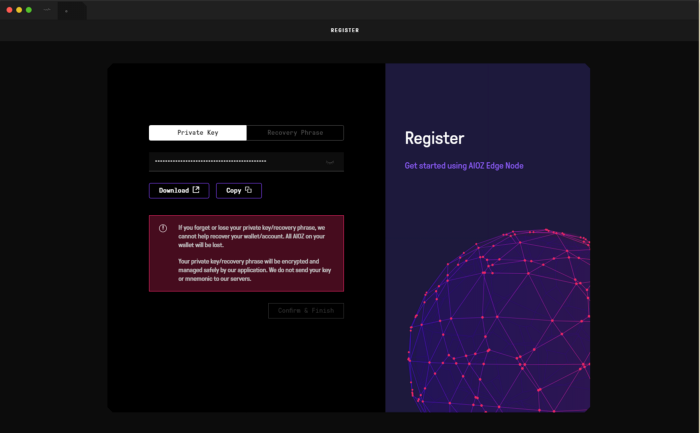
and you can also write down the Recovery Phrase which is a mnemonic seed comprised of 24 random words ordered in a specific manner as seen below.
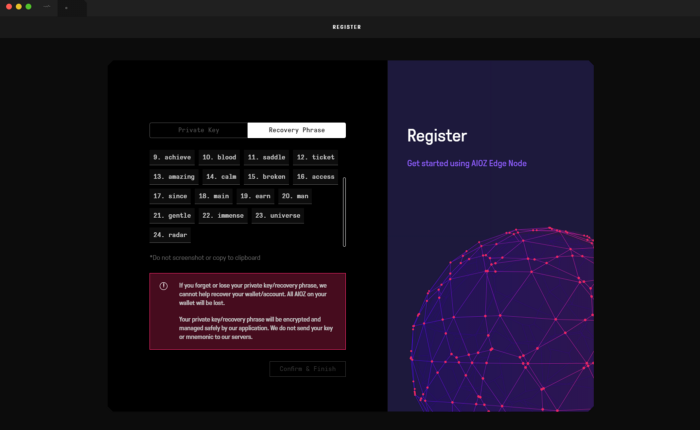
Once you’ve completed the steps above, please click “Confirm and Finish” to move on to the AIOZ Node setup stage.
Setup
Once the AIOZ Node setup process starts your computer may ask you to allow the application to run on the computer. Please do so by clicking the “Allow access” button.
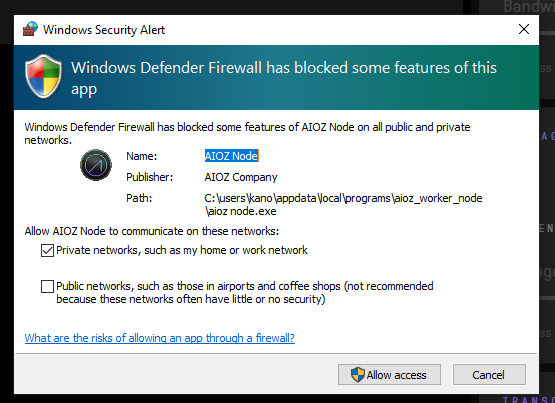
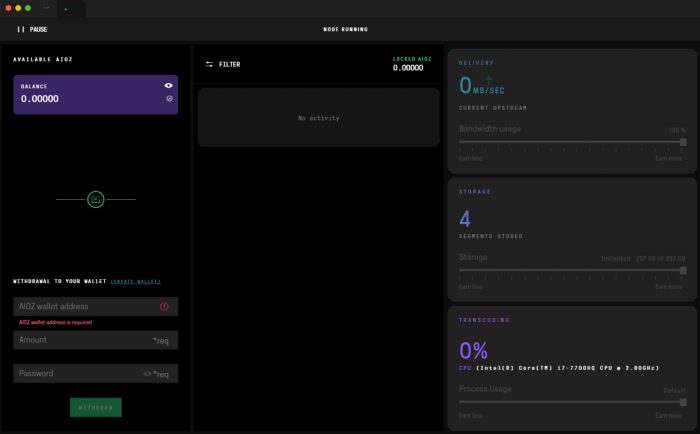
Once access has been granted, you’ll need to set up your wallet so you can start receiving rewards for providing bandwidth and computational power to the AIOZ network. This process incentivizes users to download and keep the data required to make the network run smoothly. Click “Create Wallet”
Once you do, you’ll be taken to the AIOZ Wallet website, where you will be prompted to unlock your wallet. Your wallet will allow you to earn AIOZ tokens as a reward for participating in the Content Delivery Network system. This process creates a monetary incentive to keep the network running smoothly. Sharing is caring, that’s what game theory is all about.
The AIOZ wallet
The Node program will store your balance but you’ll need to withdraw it to your wallet in order to have full control over your AIOZ funds.
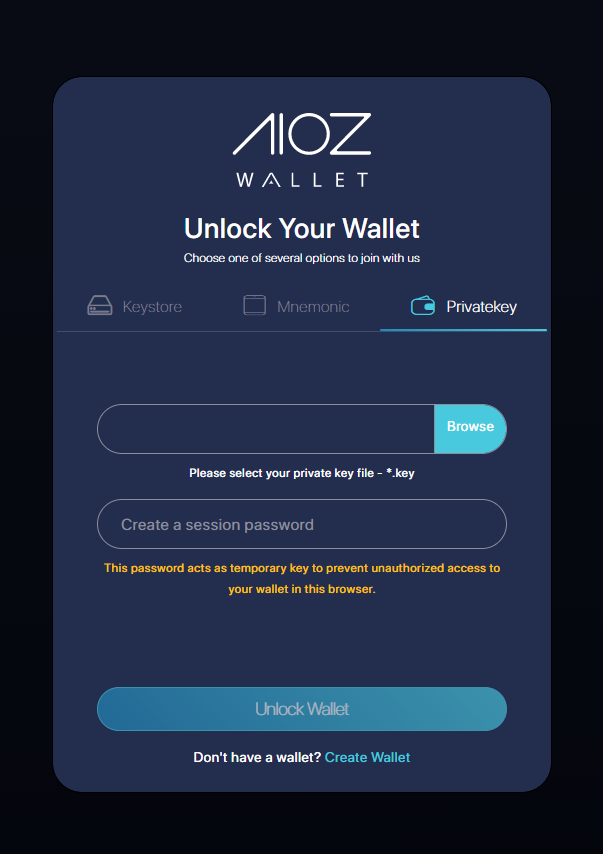
Remember the private key and mnemonic Recovery Phrase we asked you to save earlier on? This is the private key to your node account and it’s not the same as your wallet key. So please create a new wallet. When logging in again, you can either upload your Keystore file, write your Mnemonic seed or write/upload your private key.
Private Keys in Edge Node:
This private keys is for backing up Edge Node, and use for restoring our Edge Node later (for example: users remove app & reinstall app again). It is different with AIOZ Wallet Keys. Therefore, you can’t use private keys from Edge Node to import for AIOZ Wallet.
Private Keys in AIOZ Wallet:
This private keys is for you to backup your Wallet, similar with Bitcoin wallet, or ETH Wallet.
You can also use the AIOZ Web Wallet in your browser at wallet.aioz.network.
We’ll go with the safest option which is the seed phrase. We feel this is the most secure option because the information is always stored outside of your personal computer. You should write it down on a piece of paper or on an air-gapped computer that does not have regular access to the internet.
You will also need to choose a password for the wallet itself when completing this step. If you lose your password you can always enter your private key info again and choose a new password. This is a temporary password that will add an extra security layer and protect your wallet when you access it via your browser in case you leave your session turned on an unprotected computer.
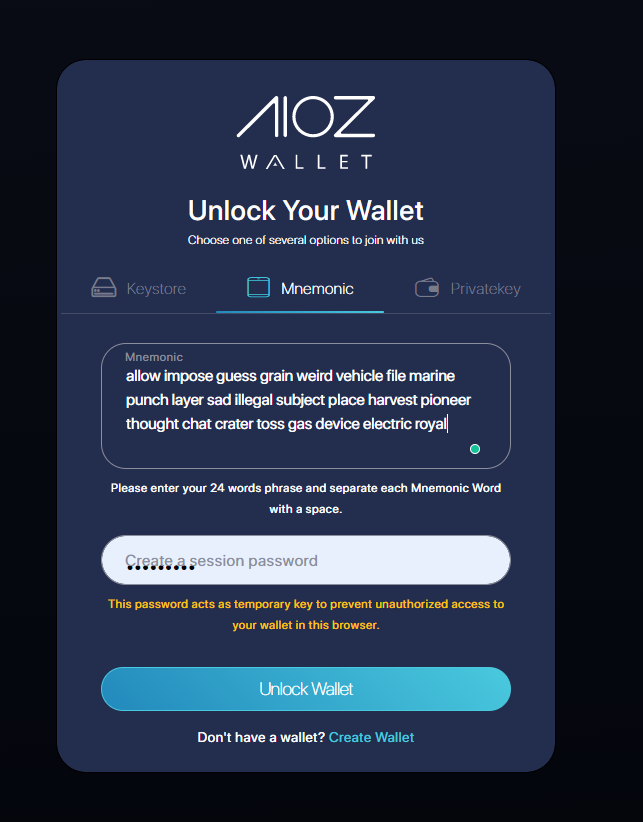
Once you’re done, just click “Unlock wallet”. Once you do, you’ll have access to your wallet info, which you’ll need in order to withdraw the balance earned from running your node and helping the network run
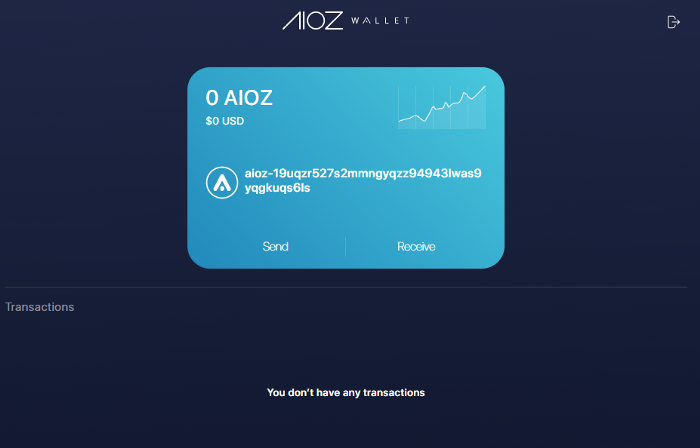
Withdrawing AIOZ tokens
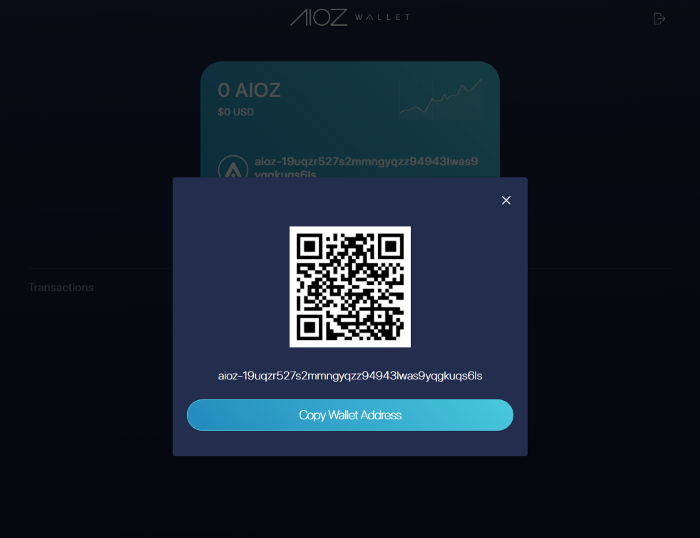
Once you are ready to collect your rewards, click “Receive” on the AIOZ Wallet webpage and then click “Copy Address”
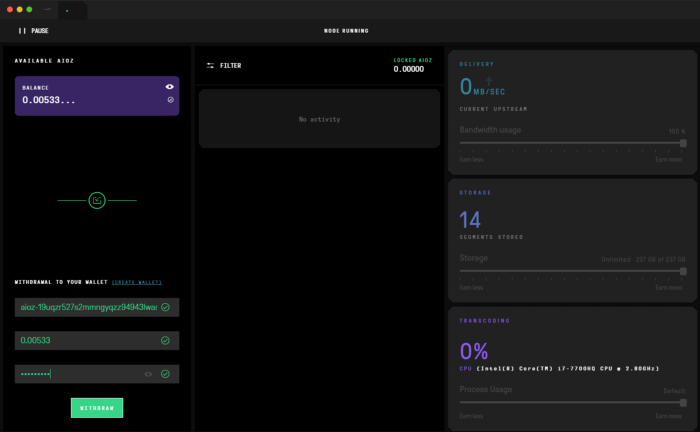
You can now paste the wallet info on the bottom left end of the AIOZ Node software. Add the wallet address to the “AIOZ wallet address” field, choose the amount you want to transfer, then enter your AIOZ node password. Once that’s done, click “Withdraw”
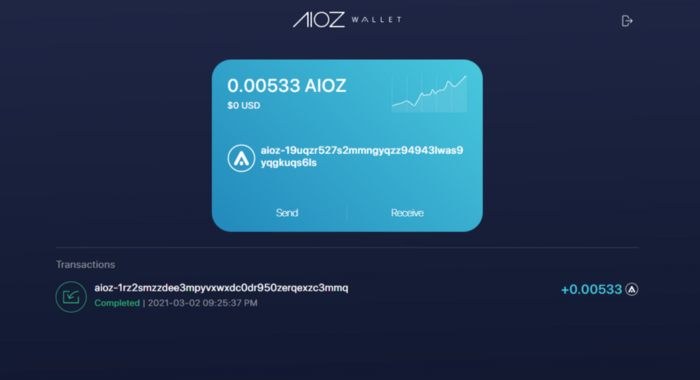
Once you’re done, you’ll be able to see the balance safely added to your AIOZ wallet. You can verify the status of your transaction by checking our blockchain explorer here.
Here’s what you should see after a few seconds:
Conclusion
That’s it! You’re now running a node, contributing to the future of streaming and content delivery. No more middlemen or unfair ad models. You’ll get your fair share for helping the network function properly by running a Node and you’ll also be able to earn revenue by watching targeted ads on the AIOZ streaming platforms. More information about these additional benefits can be found in this post.
Frequently Asked Questions
How do I set up an AIOZ node on Windows?
This guide follows the steps in order: download, install, setup, the AIOZ wallet, and withdrawing AIOZ tokens.
Can I set up a node on macOS or Linux?
Yes. There are separate guides for macOS and Linux.
Can I run a node from the command line?
Yes. The AIOZ DePIN CLI runs without a GUI. Version 1.2.5 targets home labs, servers and always-on desktops, as described in its release post.
Related Reading
- AIOZ node guide for Linux: the same setup on Linux, from the .zip download to the AppImage.
- AIOZ node guide for macOS: the same setup on macOS.
- AIOZ DePIN CLI v1.2.5: a command-line option for headless machines.
- AIOZ Nodes Rewards Announcement: how node rewards were announced in 2021.
- How to add $AIOZ to MetaMask: connect MetaMask to AIOZ Network.
About AIOZ
AIOZ is a Blockchain-based Content Delivery Network that is about to bring a revolution to the entertainment industry.
AIOZ utilizes Blockchain to better content distribution through decentralisation. A distributed Content Delivery Network (dCDN) uses Nodes for storing, streaming, and transferring data instead of traditional data centers operating on a P2P model.
AIOZ uses a faster, cheaper, and more robust platform for content streaming making it affordable, fast, and of better quality.
By using this revolutionary technology, AIOZ can efficiently change the way the world streams content. Thus taking the world one step closer to the future.